Introduction
An admissions assistant may need to read student records, while another employee also needs to add students and update their details. Their database accounts should receive the permissions needed for those tasks.
The GRANT command assigns specific permissions to a user or a role. It helps control which operations an account can perform and which database objects those permissions apply to.
How the SQL GRANT Command Works
A privilege is permission to perform an operation on a database object. Common table privileges include:
Privilege | What it allows |
|---|---|
SELECT | Read records. |
INSERT | Add new records. |
UPDATE | Change existing records. |
DELETE | Remove records. |
A privilege grant identifies the privileges, the object or scope, and the recipient. For example, granting SELECT on students to Raj allows that account to read the students table.
These privileges are separate. Granting SELECT does not also grant INSERT, UPDATE, or DELETE.
Run permission-management statements through an account authorized to grant the requested access. The receiving user or role must already exist.
Granting Permissions on a Table
Assume that the accounts raj and raj_team already exist, have no access to the students table, and do not own it.
Give Raj read-only access
Consider an existing students table with three columns: student_id, full_name, and city. It contains the following records:
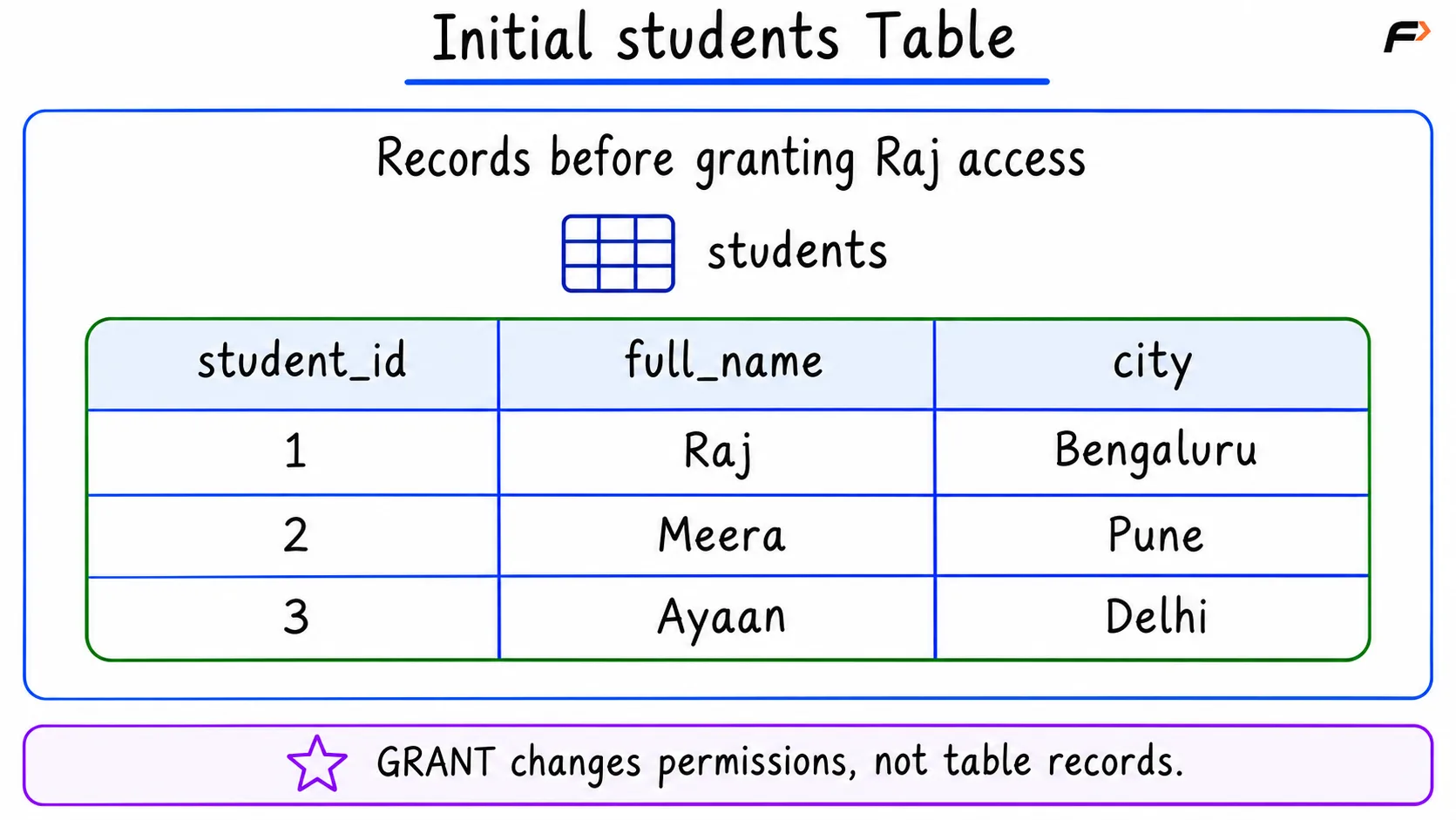
Initial student Table
Grant SELECT on the students table to allow Raj to read its records.
-- Run as an authorized administrator.-- Use the host associated with the existing account.GRANT SELECTON tuf_sql.studentsTO 'raj'@'localhost';After the grant, connect as Raj and read the table:
SELECT student_id, full_name, cityFROM tuf_sql.studentsORDER BY student_id;Output
student_id | full_name | city |
|---|---|---|
1 | Raj | Bengaluru |
2 | Meera | Pune |
3 | Ayaan | Delhi |
The query returns all three records. An INSERT, UPDATE, or DELETE attempt would fail because this account has not received those privileges.
The account named raj is separate from the student record named Raj. This table-level SELECT grant allows reading every row and column in the table, rather than only the record with a matching name.
Allow inserts and updates
Suppose Raj now needs to add students and update their details. Several privileges can be granted in one statement.
-- Run as an authorized administrator.GRANT SELECT, INSERT, UPDATEON tuf_sql.studentsTO 'raj'@'localhost';Raj can now read records, add new students, and modify existing details. Connect as Raj and run:
INSERT INTO tuf_sql.students (student_id, full_name, city)VALUES (4, 'Kavya', 'Chennai');UPDATE tuf_sql.studentsSET city = 'Mumbai'WHERE student_id = 1;SELECT student_id, full_name, cityFROM tuf_sql.studentsORDER BY student_id;Output
student_id | full_name | city |
|---|---|---|
1 | Raj | Mumbai |
2 | Meera | Pune |
3 | Ayaan | Delhi |
4 | Kavya | Chennai |
The INSERT adds Kavya, and the UPDATE changes the city of student 1 to Mumbai. DELETE remains unavailable. These grants also do not authorize changing the table’s structure or dropping the table.
Granting Permissions Through Roles
A role is a named collection of privileges. When several employees need the same access, assign their shared permissions to a role and grant that role to the appropriate accounts.
For example, an engineering role can hold permission to read, insert, and update student records. Managing these permissions together avoids repeating the same grants for every team member.
Create and assign the role
Create the role, give it the required privileges, and assign it to raj_team. This separate account has no direct privileges on the students table, so its access comes through the role.
-- Run this block as an authorized administrator.CREATE ROLE 'engineering'@'%';GRANT SELECT, INSERT, UPDATEON tuf_sql.studentsTO 'engineering'@'%';GRANT 'engineering'@'%'TO 'raj_team'@'localhost';-- Activate the role automatically at future logins.-- This does not change an already connected session.SET DEFAULT ROLE 'engineering'@'%'TO 'raj_team'@'localhost';The table privileges belong to engineering, and raj_team is now a member of that role. Changes to the role’s grants determine the permissions available through it.
Use the role’s privileges
Role membership and privilege availability are related but distinct. Depending on the configuration, a session may inherit a role’s privileges or need to activate the role before using them.
Connect as raj_team and check that the account can read the table.
-- Run in the session connected as raj_team.-- Apply the configured default role to this session.SET ROLE DEFAULT;-- Display the roles currently active in this session.SELECT CURRENT_ROLE();SELECT student_id, full_name, cityFROM tuf_sql.studentsORDER BY student_id;The record query succeeds and returns the four student records shown above. The account can also insert and update records through the role, but it still has no DELETE privilege.
The diagram shows how table privileges are grouped in a role and made available to a member account.
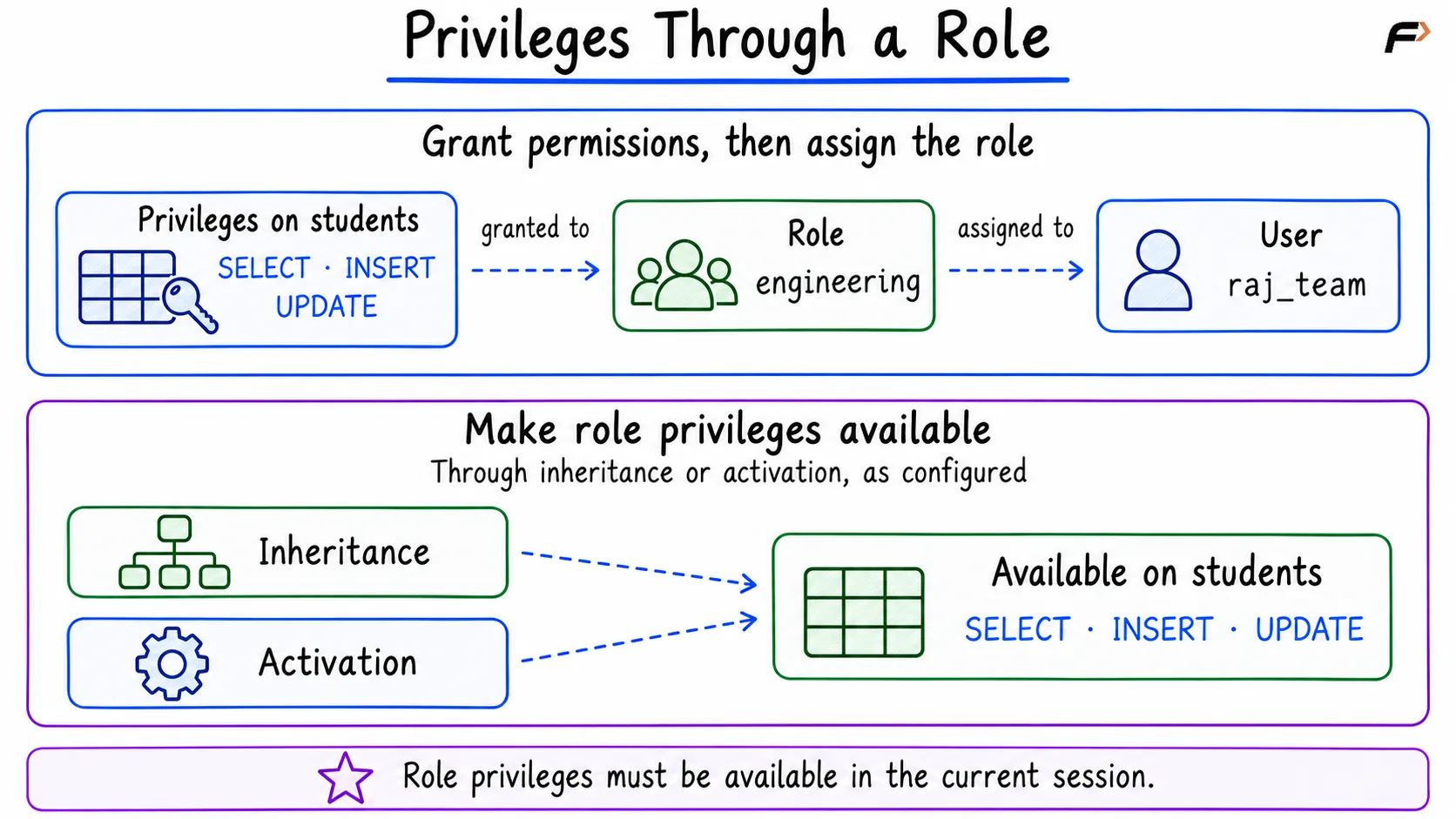
Privileges Through Roles
Checking Access and Avoiding Common Mistakes
Verify the intended account and role
Inspect the relevant grants, then test the intended operation while connected as the target user. A successful query in the administrator’s session does not prove that another account has access.
-- Run as an administrator allowed to inspect these accounts.SHOW GRANTS FOR 'raj'@'localhost';SHOW GRANTS FOR 'engineering'@'%';-- USING includes privileges contributed by this role.-- It displays those privileges without activating the role.SHOW GRANTS FOR 'raj_team'@'localhost'USING 'engineering'@'%';-- SHOW GRANTS without FOR inspects the current account.-- Check CURRENT_ROLE() inside the user's own session.Keep permissions precise
Grant only what the task requires: A user who only reads records needs SELECT. Avoid adding editing or deletion permissions without a reason. This is the principle of least privilege.
Remember that grants add permissions: A later GRANT SELECT does not remove an earlier UPDATE or DELETE grant. Use REVOKE to remove grants, and check whether access also comes from another role or a broader grant.
Check the object and scope: Permission on one table does not automatically apply to unrelated tables. Confirm that the grant covers the intended objects.
Separate using a privilege from passing it on: WITH GRANT OPTION allows the recipient to grant the relevant privilege to others. Ordinary readers and editors usually do not need this authority.
Summary
GRANT assigns specific privileges on database objects to users or roles. A user can receive permission to read, insert, and update records while remaining unable to delete them. Roles simplify shared access by grouping privileges, but those privileges must be available in the user’s session. Verify the intended account’s access, keep the scope precise, and remember that adding a narrower grant does not remove existing permissions.
Be the first to add a comment.