Installation and Tools
Learning SQL requires two basic pieces:
A database server that stores and processes data
A client tool that connects to the server and sends SQL statements
PostgreSQL and MySQL are both suitable for beginner practice. The installation process differs by operating system, but the completed environment follows the same structure.
SQL client → Database server → Database
A graphical tool can make the first connection easier, while a command-line client helps reveal how database connections actually work.
Parts of a Local SQL Setup
Database Server
The database server is the DBMS software running in the background. It accepts connections, processes SQL statements, manages stored data, and returns results. Common beginner choices include PostgreSQL and MySQL Community Server.
Installing only an editor or graphical client does not install the database server unless the installer explicitly includes both.
Command-Line Client
A command-line client sends SQL statements from a terminal.
Database system | Command-line client |
|---|---|
PostgreSQL |
|
MySQL |
|
Command-line clients are useful for testing connections, running SQL scripts, learning connection parameters, diagnosing graphical-tool problems, and automating repeatable operations.
Graphical Client
A graphical client provides windows, menus, object browsers, query editors, and result grids.
Database system | Common official graphical tool |
|---|---|
PostgreSQL | pgAdmin |
MySQL | MySQL Workbench |
pgAdmin can run as a desktop application or web application. MySQL Workbench provides SQL development, database administration, modeling, and migration tools.
MySQL Workbench compatibility should be checked against the installed MySQL Server release. The current MySQL Workbench documentation notes that some Workbench features may not function with server versions newer than those against which Workbench was developed and tested.
Database Driver
An application normally uses a driver to connect to a database.
Examples include:
JDBC for Java
Connector/Python for Python and MySQL
psycopgfor Python and PostgreSQLNode.js database packages
ODBC drivers
.NET database providers
A driver is unnecessary for basic practice in psql, MySQL Shell, pgAdmin, or MySQL Workbench. It becomes relevant when application code connects to the database.
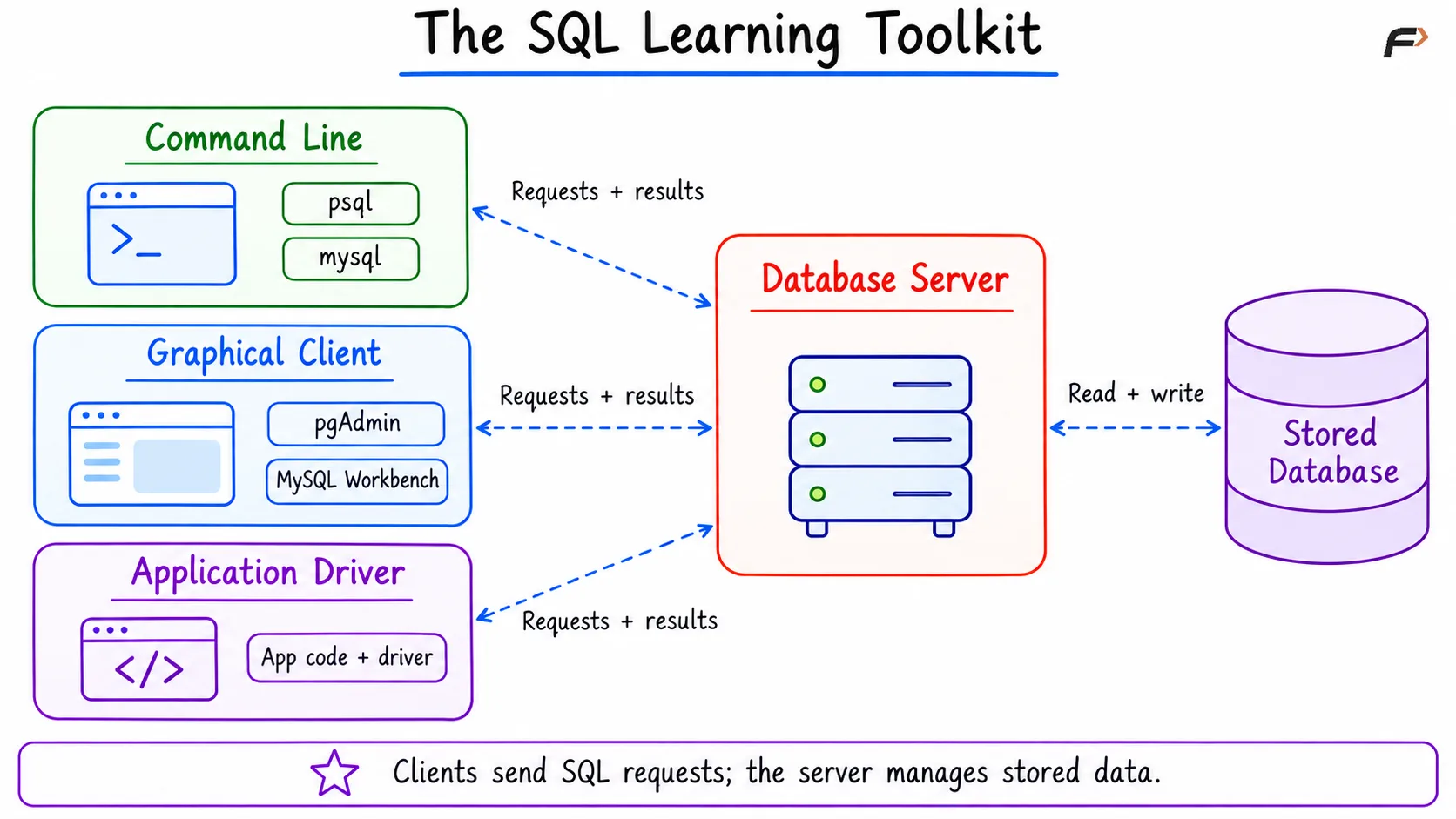
The SQL Learning Toolkit
Choosing a Setup Method
A database can be used through several setup methods.
Method | Best suited for | Main trade-off |
|---|---|---|
Native installation | Regular local learning and development | Adds services and files to the operating system |
Container | Isolated and repeatable environments | Requires container concepts and software |
Browser-based playground | Immediate practice without installation | Limited administration and persistence |
Managed cloud database | Remote development and deployment practice | Requires an account, network access, and possible cost |
Embedded database | Small applications and local files | Behaves differently from a client-server DBMS |
Native Installation
A native installation runs the DBMS directly on the operating system. This is usually the clearest setup for learning core concepts such as services, ports, user accounts, local connections, command-line clients, and graphical administration.
Container Installation
A container packages the database server and its dependencies into an isolated environment.
Containers make it easier to:
Start and stop temporary servers
Run different database versions
Remove an environment cleanly
Reproduce the same setup on another machine
Persistent storage must be configured carefully. Removing a container without a persistent volume can remove its database data.
Browser-Based Environment
An online SQL environment can be useful for the first few lessons.
Its limitations may include restricted SQL features, temporary data storage, lack of server administration, limited file import capabilities, no control over database versions, and missing permission and connection practice.
A browser playground supplements a real database installation rather than reproducing every part of one.
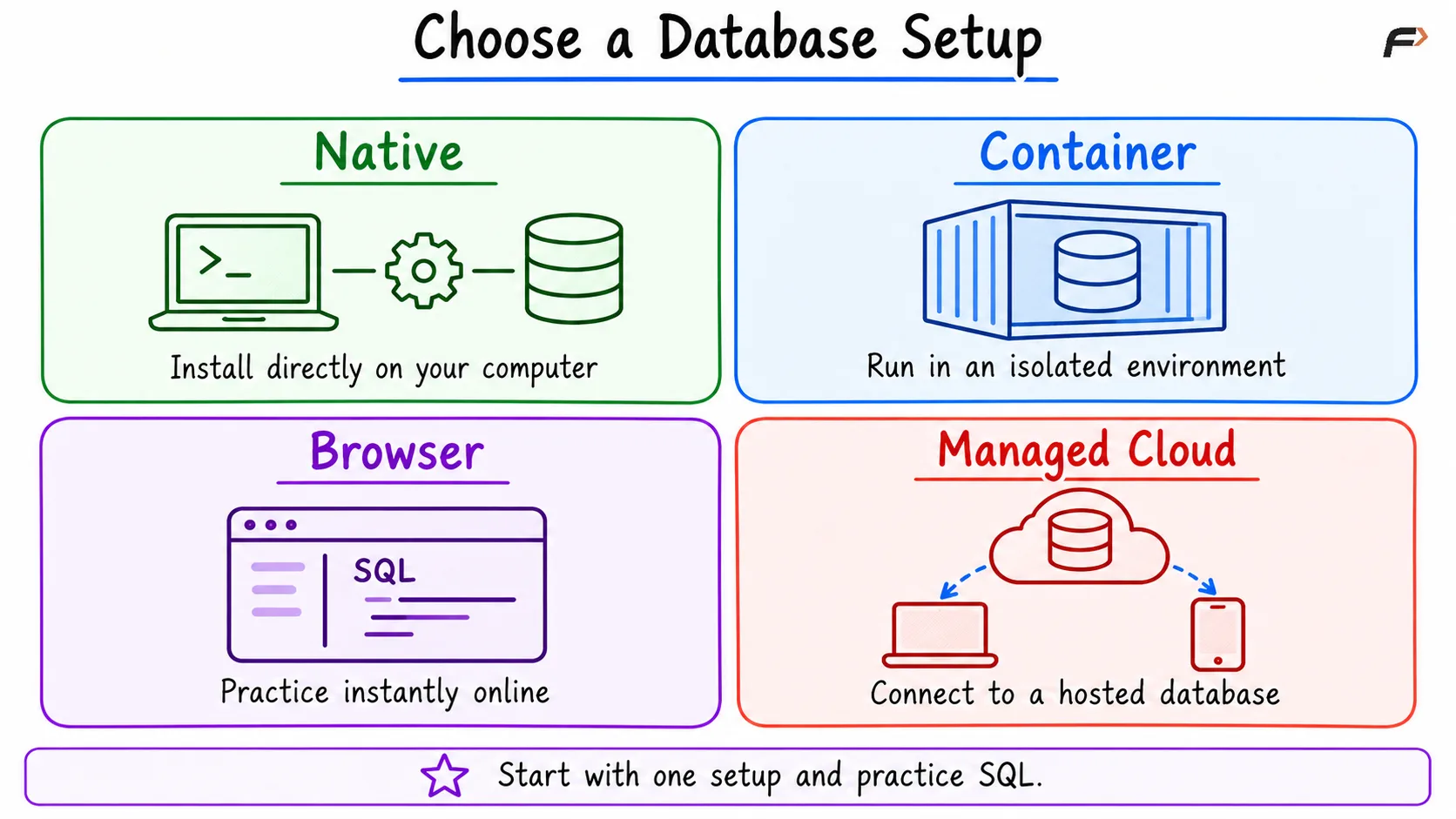
Choose a Database Setup
Installing PostgreSQL
The official PostgreSQL download page provides packages and installers for Windows, macOS, Linux, BSD, and other supported platforms.
Development snapshots, beta releases, and release candidates are intended for testing. A stable supported release is the safer choice for beginner coursework.
PostgreSQL on Windows
The PostgreSQL project links to an interactive Windows installer distributed by EDB. The installer can include PostgreSQL server, psql, pgAdmin, and StackBuilder.
The current PostgreSQL Windows installer page lists the supported packages and platforms.
A typical installation records the installation directory, data directory, server port, administrative account, password, and selected components. The password assigned during setup should be stored securely.
PostgreSQL on macOS
The official PostgreSQL download page lists available macOS packages and installers.
PostgreSQL can also be installed through a package manager. Package-manager behavior, service commands, and file locations may differ from graphical installers.
Only one installation method should manage the same server instance. Mixing several package sources can create confusion about executables, ports, services, and data directories.
PostgreSQL on Linux
PostgreSQL is available through package-management systems on most Linux distributions. The PostgreSQL project recommends integrated package management when available because it supports operating-system integration and updates.
On Debian- or Ubuntu-based distributions, a repository-provided installation commonly resembles:
sudo apt updatesudo apt install postgresqlPackage names, included tools, and available versions depend on the distribution and configured repositories.
PostgreSQL Graphical Tool
pgadmin is the main PostgreSQL graphical administration and development tool.
It provides server registration, object browsing, SQL editing, result grids, dashboards, backup and restore interfaces, and user and role management.
The pgAdmin download page recommends binary packages for most users because building from source requires additional technical knowledge.
Installing MySQL
The MySQL Community Downloads page provides MySQL Community Server, MySQL Shell, MySQL Workbench, operating-system repositories, connectors and drivers, and MySQL Installer for Windows.
A stable General Availability release is preferable for routine learning.
MySQL on Windows
MySQL Installer for Windows can install and manage multiple MySQL products.
A beginner setup commonly includes:
MySQL Community Server
MySQL command-line client or MySQL Shell
MySQL Workbench
Required connectors
Configuration normally includes the server type, TCP port, authentication settings, administrative password, and Windows service settings.
MySQL on macOS
MySQL Community Server is available through the official MySQL Community Server download page.
MySQL can also be installed through a package manager. The selected method determines service commands, default paths, and upgrade behavior.
MySQL on Linux
MySQL provides official APT, Yum, and SUSE repositories. Some Linux distributions also provide their own MySQL packages.
A Debian- or Ubuntu-based installation using configured repositories commonly resembles:
sudo apt updatesudo apt install mysql-serverThe exact server release depends on the operating-system repository. Official MySQL repositories may provide a different release stream.
MySQL Graphical Tool
MySQL Workbench provides SQL editing, result grids, object browsing, administration, data modeling, import and export capabilities, and migration tools.
The official MySQL Workbench download page provides platform-specific packages. Workbench is a client tool. A MySQL server must still exist locally or remotely.
Starting and Checking the Database Service
Installing server software does not always mean the server is currently running.
The database server normally runs as:
A Windows service
A macOS background service
A Linux system service
A container
A managed remote service
Service names and management commands depend on the installation method.
Common PostgreSQL Checks
A PostgreSQL connection requires a host, port, database name, username, and password or another authentication method.
The conventional PostgreSQL TCP port is 5432.
A local command-line connection commonly resembles:
psql -h localhost -p 5432 -U postgresA database name may also be supplied:
psql -h localhost -p 5432 -U postgres -d postgresCommon MySQL Checks
A MySQL connection commonly requires a host, port, username, password, and an optional database name.
The conventional MySQL TCP port is 3306.
A local command-line connection commonly resembles:
mysql -h localhost -P 3306 -u root -pThe client requests the password separately. Supplying passwords directly inside shell commands can expose them through terminal history or process listings.
Understanding Connection Details
A client cannot connect using only the DBMS product name. It needs the location and identity of a specific server connection.
Connection value | Purpose | Common local example |
|---|---|---|
Host | Identifies the database machine |
|
Port | Identifies the database service | PostgreSQL |
Database | Selects a database within the server |
|
Username | Identifies the database account |
|
Password | Verifies the account when password authentication is used | Set during installation |
SSL settings | Control encrypted connections | Often optional for local-only learning |
localhost usually refers to the same computer on which the client is running. It does not mean that every locally installed server accepts the same credentials or port.
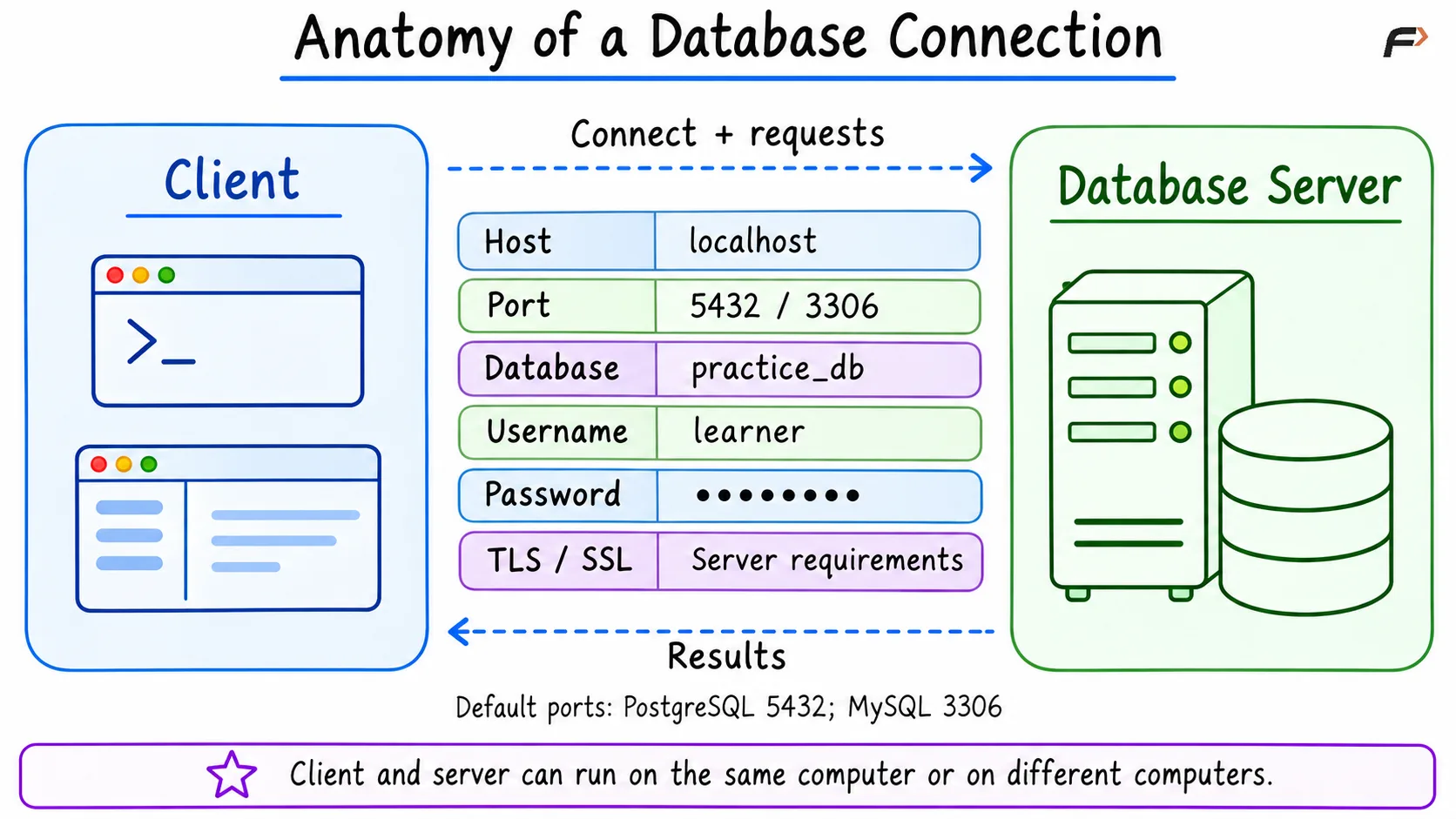
Anatomy of a Database Connection
Verifying the Installation
A successful verification confirms three separate facts:
The server is running.
The client can connect.
The server can execute SQL.
Version Check (PostgreSQL & MySQL)
SELECT VERSION() AS database_version;A basic calculation can provide a second test.
Test Query (PostgreSQL & MySQL)
SELECT 2 + 2 AS result;Expected result:
result |
|---|
4 |
Successful output confirms that the connection and SQL execution path are working.
Command-Line and Graphical Tools
Both tool styles are useful.
Capability | Command-line client | Graphical client |
|---|---|---|
Run SQL | Yes | Yes |
Display results | Text output | Result grid |
Browse objects | Commands and queries | Visual tree |
Automate scripts | Strong support | Limited or tool-specific |
Diagnose connections | Direct and transparent | Easier interface but more layers |
Learn exact SQL | Encouraged | Some actions may generate SQL |
Administration | Available through commands | Guided interfaces |
Resource usage | Usually lower | Usually higher |
A practical learning approach uses both:
Graphical tools for discovering databases and tables
Command-line tools for understanding connections and scripts
SQL editors for writing statements directly
Official documentation for product-specific behavior
Graphical buttons should not replace learning the SQL generated by those actions.
A Minimal Beginner Setup
Only one DBMS is required at the beginning.
PostgreSQL Setup
A minimal PostgreSQL setup consists of PostgreSQL server, psql, pgAdmin, a local connection, and one practice database.
MySQL Setup
A minimal MySQL setup consists of MySQL Community Server, the mysql client or MySQL Shell, MySQL Workbench, a local connection, and one practice database.
Installing both PostgreSQL and MySQL is optional. Running both at once uses additional storage and memory and introduces two sets of services, accounts, ports, and dialect differences.
Learning one system first creates a simpler environment. The second system can be added when comparing dialect behavior becomes useful.
Basic Security for a Learning Environment
A local learning installation still requires reasonable security.
Recommended practices include:
Use a non-empty administrative password.
Store passwords in a password manager.
Avoid placing passwords directly in shell commands.
Keep the database bound to local interfaces unless remote access is required.
Do not expose database ports directly to the public internet.
Create limited accounts for applications instead of using administrative accounts.
Install updates from trusted package sources.
Avoid copying production data into a personal practice environment.
Stop or remove unused servers.
Remote access adds firewall, encryption, network, and authentication concerns beyond a basic local installation.
Common Installation Problems
Symptom | Likely cause | Useful check |
|---|---|---|
Connection refused | Server is not running or port is incorrect | Check the service and port |
Authentication failed | Wrong username, password, or authentication configuration | Verify the account and credentials |
Client command not found | Client executable is absent from | Locate the installation’s binary directory |
Graphical tool opens but cannot connect | Client is installed but server is unavailable | Confirm that a server exists and is running |
Port already in use | Another service is using the configured port | Inspect active services or choose another port |
Database does not exist | Incorrect database name | Check available databases |
Permission denied | Account lacks required privileges | Use an appropriate account |
Works in one tool but not another | Connection settings differ | Compare host, port, database, username, and SSL |
Container data disappears | Storage was not persisted | Configure a volume before storing important data |
Multiple server versions appear | Several installation methods are active | Identify the running executable and data directory |
Error messages should be read from the beginning. The first connection or startup error is often more useful than later follow-on messages.
Common Confusions About Installation and Tools
SQL itself is not installed as a standalone database
SQL is a language. A DBMS such as PostgreSQL or MySQL provides an environment that executes SQL.
A graphical client is not necessarily a database server
pgAdmin and MySQL Workbench connect to database servers. Installing a client alone may not create a running server.
The database server and client can run on different machines
Local learning often places both on one computer, but production systems commonly separate them.
A successful installation does not guarantee a successful connection
The server must be running, listening on the expected interface and port, and accepting the supplied account credentials.
PostgreSQL and MySQL accounts are separate from operating-system accounts
A matching name does not automatically make them the same identity.
Summary
A working SQL environment combines a database server with client tools that send SQL statements and display results. One DBMS, such as PostgreSQL or MySQL, is enough to begin learning. Verify the setup by checking that the server is running, the client can connect, and a test query executes successfully. Understanding connection settings and the separate roles of server and client makes installation problems easier to diagnose.
Be the first to add a comment.