Introduction
Typing google.com in a browser looks simple, but many networking steps happen in the background before the page appears.
The browser must find the correct server, create a secure connection, send an HTTP request, receive the response, and render the page for the user.
This process connects many important computer networking concepts, including DNS, IP addressing, TCP, TLS, HTTP, caching, and browser rendering.
Step 1: Browser Understands the Input
When google.com is typed into the address bar, the browser first decides whether the input is a search query or a website address.
Since google.com looks like a domain name, the browser treats it as a web address.
Modern browsers usually prefer secure communication. So the browser may automatically try:
https://google.com
In many cases, the request may also be redirected to:
The exact behavior can depend on browser settings, cache, redirects, and security policies such as HSTS.
Step 2: Browser Checks Cache
Before contacting external systems, the browser checks whether it already has useful information stored locally.
It may check:
Browser DNS cache
Operating system DNS cache
Cached HTTPS rules
Cached redirects
Cached page resources
If the required information is already available and still valid, the browser can avoid repeating some network steps.
Caching makes repeated visits faster.
Step 3: DNS Resolves google.com
Computers communicate using IP addresses, not domain names. So the browser needs an IP address for google.com.
This is done using DNS, or Domain Name System.
If the IP address is not already cached, the system asks a DNS resolver. The resolver may contact root servers, TLD servers, and authoritative DNS servers to find the final answer.
A simplified DNS flow is:
Browser/OS -> Recursive Resolver -> DNS Hierarchy -> IP Address
The DNS response gives one or more IP addresses for the domain.
Google may return different IP addresses depending on location, load balancing, network conditions, and data center selection.
Step 4: Browser Connects to the Server
After getting the IP address, the browser needs to connect to the server.
For traditional HTTPS over TCP, the browser first performs a TCP connection setup using the three-way handshake:
SYN -> SYN-ACK -> ACK
This creates a reliable transport connection between the browser and the server.
For modern HTTP/3, the browser may use QUIC over UDP instead of TCP. QUIC combines transport setup and security features more efficiently in many cases.
So the connection may use:
TCP + TLS for HTTPS with HTTP/1.1 or HTTP/2
QUIC over UDP for HTTP/3
The exact version depends on browser support, server support, network conditions, and cached information.
Step 5: TLS Creates a Secure Channel
For HTTPS, the browser must create a secure encrypted connection.
This is done using TLS, or Transport Layer Security.
During the TLS handshake:
The server sends its digital certificate.
The browser verifies that the certificate belongs to the correct domain.
The certificate chain is checked against trusted Certificate Authorities.
The browser and server agree on cryptographic settings.
Secure session keys are created.
After this step, the browser and server can exchange encrypted data.
TLS protects confidentiality, integrity, and server authentication.
Step 6: Browser Sends an HTTP Request
Once the secure connection is ready, the browser sends an HTTP request.
A simplified request may look like:
GET / HTTP/2
Host: google.com
User-Agent: browser information
Accept: text/html
This request tells the server that the browser wants the main page for google.com.
The browser may also send cookies, language preferences, compression support, and other headers depending on the situation.
Step 7: Server Processes the Request
Google's server receives the request and decides how to respond.
The server may:
Check the requested domain and path
Apply redirects if needed
Read cookies or request headers
Select the best response
Generate or fetch required content
Return HTML and other resources
Large websites like Google use many servers, load balancers, caches, and data centers. The request is routed to an appropriate system that can respond efficiently.
Step 8: Server Sends an HTTP Response
The server sends an HTTP response back to the browser.
A simplified response may contain:
HTTP/2 200 OK
Content-Type: text/html
Cache-Control: ...
HTML content
The response usually includes:
Status code
Headers
HTML body
Cache information
Cookies if needed
Security headers
If the server wants the browser to use another URL, it may send a redirect response such as 301, 302, 307, or 308.
Step 9: Browser Downloads Page Resources
The first response usually contains HTML. That HTML may refer to other resources.
The browser may then request:
CSS files
JavaScript files
Images
Fonts
Icons
API data
These additional resources may come from the same domain or other Google-controlled domains.
The browser may reuse existing connections or open additional optimized connections depending on the protocol and resource needs.
Step 10: Browser Renders the Page
After receiving the required content, the browser starts rendering the page.
The browser:
Parses HTML to build the DOM
Parses CSS to build the CSSOM
Runs JavaScript when needed
Builds the render tree
Calculates layout
Paints pixels on the screen
This is how the search page finally becomes visible to the user.
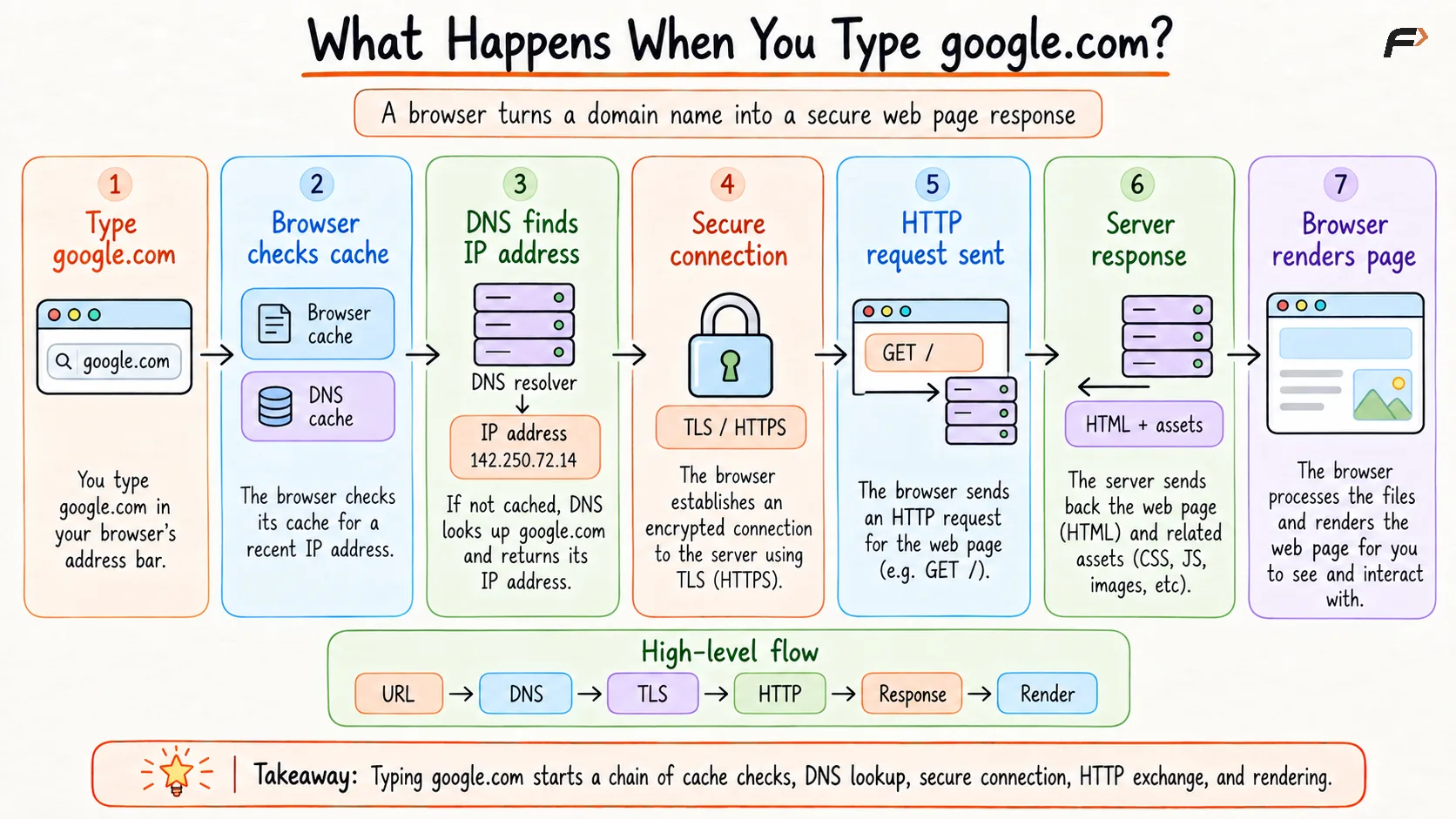
What Happens When You Type google.com
Conclusion
When google.com is typed in a browser, the browser does much more than open a page. It checks cached information, resolves the domain using DNS, creates a transport connection, establishes security with TLS, sends an HTTP request, receives a response, downloads resources, and renders the final page.
Be the first to add a comment.