Introduction
Public Wi-Fi is common in airports, cafes, hotels, malls, libraries, and offices. Connecting to it feels simple, but many networking steps happen in the background before internet access starts working.
When a device connects to public Wi-Fi, it must find the wireless network, communicate with the access point, get network configuration, pass any login or captive portal checks, and then send traffic through the local network to the internet.
Public Wi-Fi also brings security risks because the network is shared with many unknown users.
Step 1: Device Scans for Wi-Fi Networks
The device first scans for nearby wireless networks.
Wi-Fi networks advertise their names using SSIDs, or Service Set Identifiers. For example, a cafe may broadcast an SSID such as Cafe_Free_WiFi.
The device detects available SSIDs and shows them in the Wi-Fi list. It may also remember previously used networks and try to reconnect automatically if one is nearby.
Step 2: User Selects the Public Wi-Fi
After the user selects a public Wi-Fi network, the device tries to connect to the access point.
An access point is the wireless device that allows Wi-Fi clients to join the local network. It acts as the bridge between wireless devices and the wired or upstream network.
At this stage, the device and access point exchange management information to begin the connection process.
Step 3: Device Associates with the Access Point
Association is the process through which the device becomes linked with the Wi-Fi access point.
The access point checks whether the device is allowed to join the wireless network. On open public Wi-Fi, this may happen without a password. On secured public Wi-Fi, the user may need to enter a Wi-Fi password.
Once association succeeds, the device is connected to the wireless network at the link layer, but it may not have full internet access yet.
Step 4: Authentication or Captive Portal May Appear
Many public Wi-Fi networks use a captive portal.
A captive portal is the login or agreement page that appears before internet access is allowed. It may ask the user to:
Accept terms and conditions
Enter a phone number or email
Use a room number or access code
Watch an advertisement
Sign in with an account
Before the captive portal is completed, the network may block normal internet traffic and redirect browser requests to the portal page.
After the user completes the portal step, the network allows the device to access the internet.
Step 5: Device Gets an IP Address Using DHCP
To communicate on the network, the device needs IP configuration.
This is usually provided by DHCP, or Dynamic Host Configuration Protocol.
DHCP gives the device important settings such as:
IP address
Subnet mask
Default gateway
DNS server address
Lease duration
A simplified DHCP flow is:
Discover -> Offer -> Request -> Acknowledge
After DHCP succeeds, the device has the network information needed to send and receive IP packets.
Step 6: Default Gateway Is Used for Internet Access
The default gateway is usually the router that connects the local Wi-Fi network to the internet.
When the device wants to reach a website, it checks whether the destination IP address is inside the local network. If it is outside the local network, the packet is sent to the default gateway.
The gateway then forwards the traffic toward the internet.
In many public Wi-Fi networks, the gateway also performs NAT so that many connected users can share one or more public IP addresses.
Step 7: DNS Resolves Website Names
When the user opens a website, the device needs to convert the domain name into an IP address.
For example:
google.com -> IP address
This is done using DNS.
The DNS server may be provided by the public Wi-Fi network, the ISP, a public DNS provider, or a VPN if one is active.
If DNS fails, the device may be connected to Wi-Fi but still unable to open websites by name.
Step 8: Web Traffic Uses TCP, TLS, HTTP, or QUIC
After DNS returns an IP address, the device can connect to the server.
For HTTPS websites, the browser usually creates a secure connection using TLS. Depending on the protocol version, the connection may use:
TCP + TLS for HTTP/1.1 or HTTP/2
QUIC over UDP for HTTP/3
Once the secure connection is ready, the browser sends an HTTP request and receives the website response.
This is how the public Wi-Fi connection finally becomes useful for browsing, apps, messaging, streaming, and other internet services.
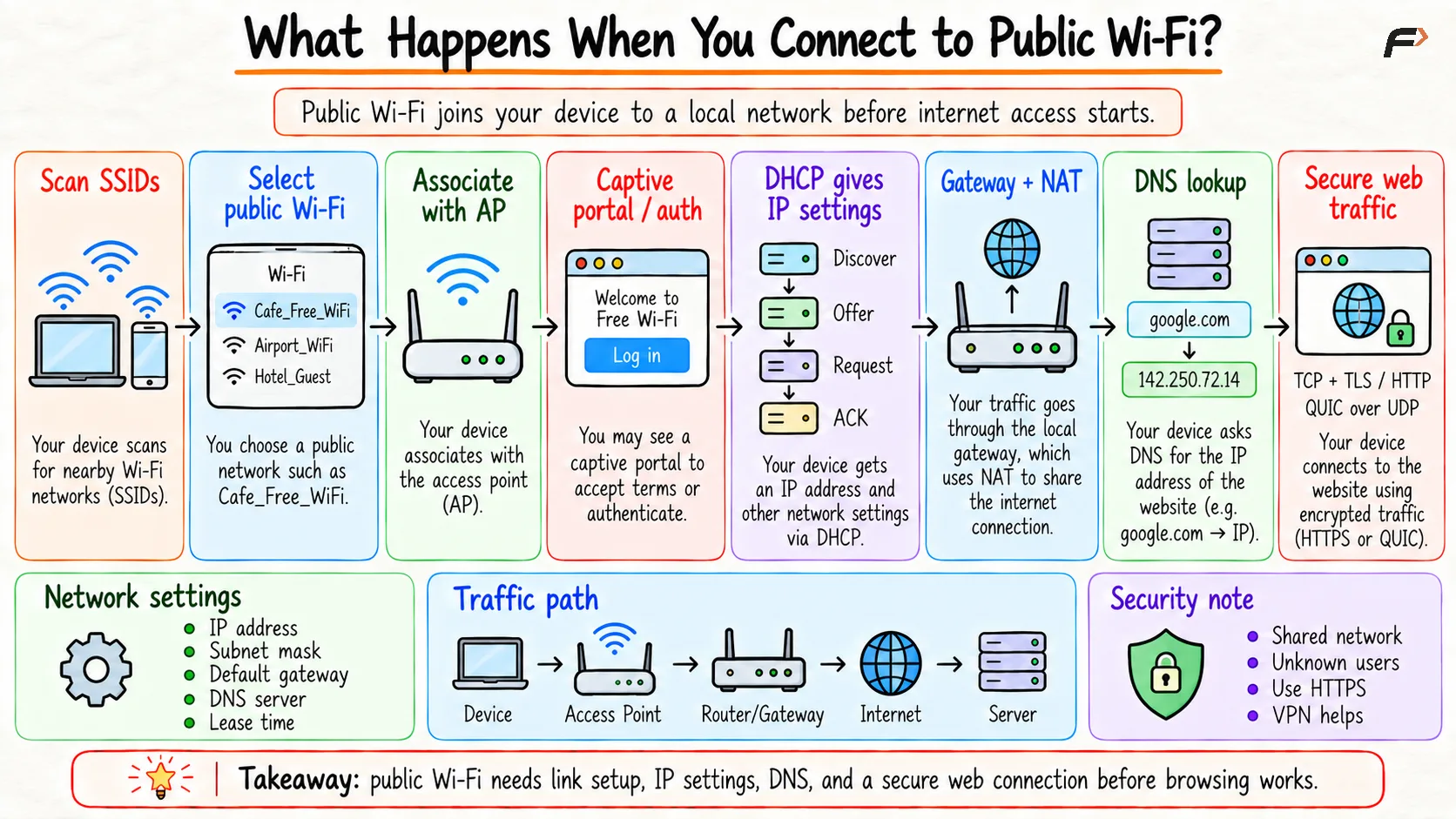
What Happens When You Connect to Public Wi-Fi?
Conclusion
When a device connects to public Wi-Fi, it scans for the network, associates with an access point, may pass through a captive portal, receives IP settings using DHCP, uses a gateway for internet access, resolves domain names using DNS, and then communicates with servers using protocols such as TCP, TLS, HTTP, or QUIC.
The process is convenient, but public Wi-Fi also introduces security risks because the network is shared and not fully controlled by the user. Using HTTPS, avoiding suspicious portals, disabling sharing, and using a trusted VPN when needed can make public Wi-Fi usage safer.
Be the first to add a comment.