Introduction
An operating system is not only an interface between applications and hardware. It also works as a resource manager that controls how limited hardware resources are used by different programs.
CPU time, memory, files, storage, devices, and network access are shared by many applications. The operating system manages these resources so the system remains safe, efficient, and responsive.
What OS As A Resource Manager Means
OS as a resource manager means the operating system decides how computer resources are allocated, protected, shared, and released. Many applications may run together, but the hardware available to them is limited.
For example, a browser, code editor, terminal, music app, database, and background service may all need CPU time, memory, files, storage, and devices. The OS decides who gets which resource, when it gets it, and under what rules.
Why Resource Management Is Needed
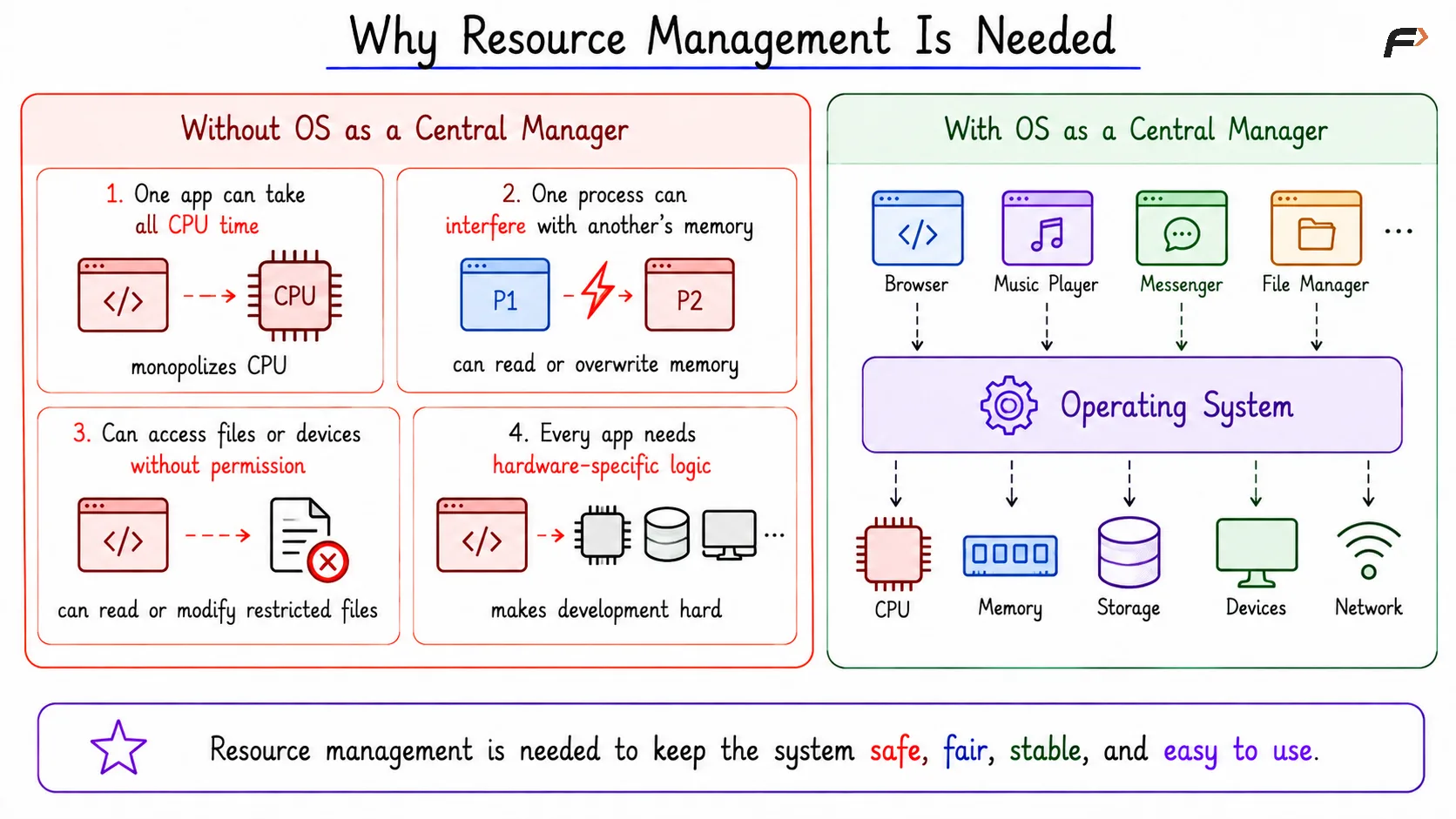
Resource management is needed because applications cannot be trusted to coordinate hardware completely on their own. If every application directly controlled hardware, the system would become unsafe and difficult to manage.
Without the OS as a central manager:
One application could take too much CPU time.
One process could interfere with another process’s memory.
One program could access files or devices without permission.
Every application would need hardware-specific logic.
The system could become slow, unstable, or insecure.
The operating system avoids these problems by giving applications controlled access to resources instead of allowing direct uncontrolled access to hardware.
Why Resource Management Is Needed
CPU Management
The CPU executes instructions, but many processes may be ready to run at the same time. A process is a running program, so when Chrome, WhatsApp, or a code editor runs, the OS treats each running program as a process.
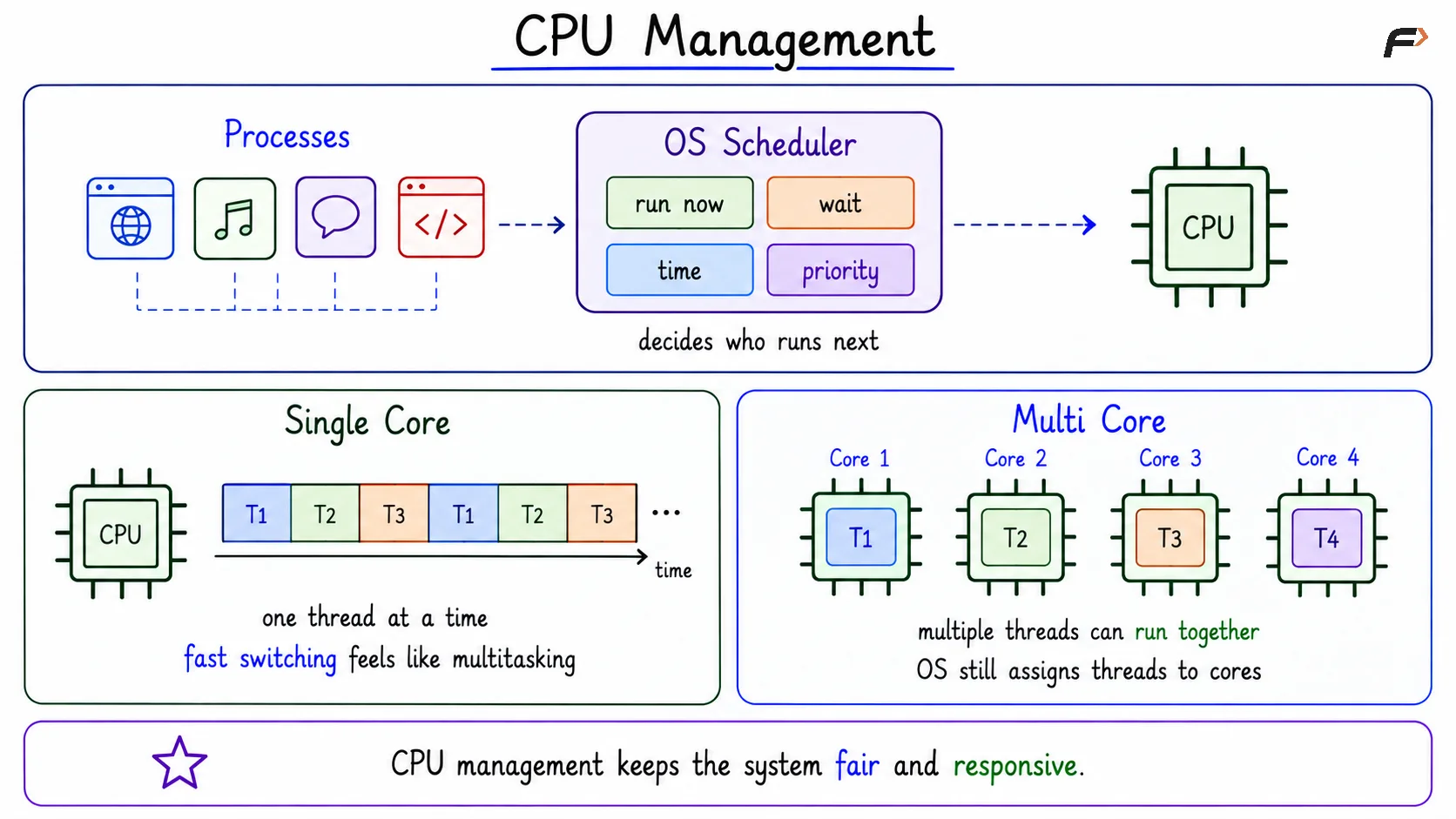
The CPU cannot execute every ready process at the same instant, especially on a single-core processor. The operating system uses CPU scheduling to decide which process or thread should run next.
The scheduler decides:
which process runs now
which process waits
how long a process runs
which process gets priority
how to keep the system responsive
Single-Core And Multi-Core Processing
A thread is a path of execution inside a process. A process may have one thread or many threads, depending on the work it performs.
On a single-core processor, only one thread can execute at a particular instant. Still, the user feels that many applications are running together because the OS switches CPU time between threads very quickly.
For example, the OS may run a browser thread for a short time, then switch to a music app thread, then switch to a background service. This fast switching creates the feeling of multitasking even though only one thread runs at one exact moment.
On a multi-core processor, multiple threads can truly run at the same time because different cores are available. Even then, the operating system still decides which thread runs on which core and how waiting threads should get a fair chance.
CPU Management
Memory Management
RAM stores the code and data that active programs need while running. Since many processes run together, the operating system must decide where each process lives in memory and how much memory it can use.
Memory management is important for both efficiency and protection. One process should not be able to directly overwrite another process’s memory, because that could crash the program or expose private data.
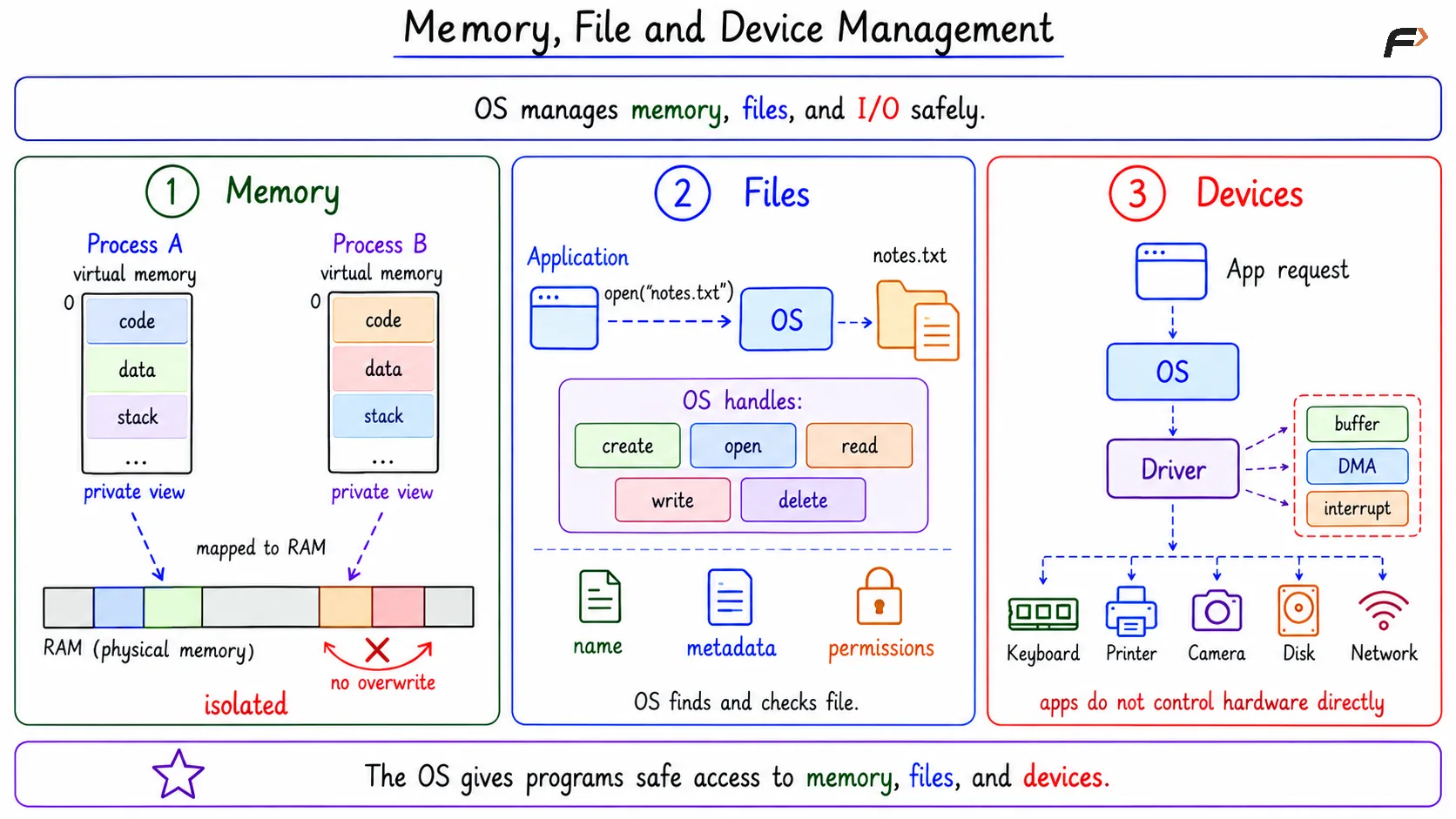
A key idea in memory management is virtual memory. Virtual memory gives each process its own private-looking address space, even though the actual physical RAM is shared.
For example, Process A and Process B may both feel that their memory starts from address 0. In reality, the OS maps their virtual addresses to different physical memory locations.
File And Storage Management
Files are named data stored permanently on storage devices such as SSDs or hard disks. The operating system manages how files are created, opened, read, written, protected, and deleted.
Applications do not directly search raw disk blocks when they open a file. They ask the OS, and the OS handles file names, directories, metadata, permissions, open-file tables, and physical storage details.
Metadata means information about a file, such as its size, owner, location, timestamps, and permissions. Permissions decide who can read, write, or execute the file.
For example, when a program calls open("notes.txt"), the OS checks whether the file exists, whether the program has permission, and what file information is needed.
Device And I/O Management
A computer has many devices, such as keyboard, mouse, camera, microphone, printer, disk, GPU, and network card. Applications should not directly control these devices because each device has its own hardware behavior.
The operating system uses device drivers to communicate with hardware. A driver helps the OS understand how to work with a specific device.
The OS also uses mechanisms such as interrupts, buffers, and DMA. Interrupts help devices notify the CPU when something happens, buffers temporarily hold data, and DMA helps transfer data efficiently without making the CPU do every small transfer.
The basic flow is: Application requests I/O => OS selects driver => Driver talks to device => Result returns to application
Memory, File and Device Management
System Calls As Controlled Access
Applications request operating system services through system calls. A system call is a controlled request from an application to the kernel for some service or resource.
Applications use system calls to create processes, allocate memory, open files, read or write data, use sockets, and interact with devices. This keeps important operations under OS control.
System calls matter because they stop applications from directly performing privileged actions. The kernel checks permissions, validates the request, performs the operation if allowed, and returns the result.
Real Example: Video Call
A video call is a good example of operating system resource management because many resources are used together. One simple user action may involve CPU, memory, files, devices, and network access.
During a video call:
CPU: Runs the browser or app, handles audio processing, video encoding, and network work.
Memory: Stores active scripts, video frames, audio buffers, and temporary data.
Files: May use cache files, profile data, certificates, or saved settings.
Devices: Uses camera, microphone, speaker, display, and network card.
Network: Sends and receives audio-video data through network interfaces.
This shows that OS resource management is not isolated. The OS coordinates many managers together so that the video call feels like one smooth activity to the user.
Practical Observation Tools
On Linux, some tools help observe resource management in a real system. These tools are not required to understand the concept, but they connect OS theory with practical usage.
Useful examples include:
top or htop: Shows CPU usage and running processes.
ps: Shows the process list.
free: Shows memory usage.
vmstat: Shows CPU, memory, and I/O activity.
df: Shows file-system space.
lsof: Shows open files.
dmesg: Shows kernel and device messages.
These tools show that the operating system is constantly tracking and managing resources while applications are running.
Summary
OS as a resource manager means the operating system manages CPU, memory, files, devices, storage, and network resources for running applications. It decides which process gets a resource, when it gets it, and how safely it can use it.
This management keeps the system fair, efficient, and protected. Instead of allowing applications to directly control hardware, the operating system provides controlled access through scheduling, memory management, file systems, device drivers, and system calls.
Be the first to add a comment.